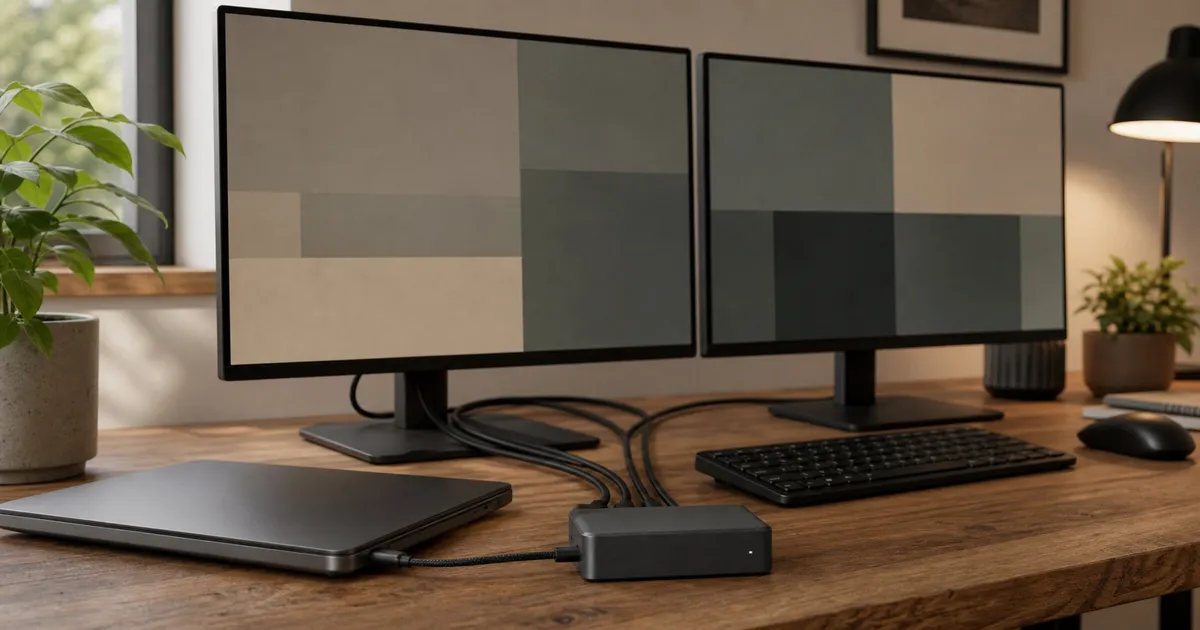
The right dual-monitor dock is the one your laptop can actually drive. Based on the documented host, display, and power limits reviewed here, the Plugable TBT4-UDZ is our fit-based pick for a conventional Thunderbolt 4 home office. The CalDigit TS5 Plus adds bandwidth and connectivity for newer Thunderbolt hosts, Dell users may prefer the serviceable WD22TB4, and the UD-6950PDZ solves a different problem through DisplayLink.
Need to decide between Thunderbolt, USB-C/MST, and DisplayLink before comparing models? Read our Thunderbolt dock versus USB-C dock guide for the host-capability decision first.
If you already have a working Thunderbolt 4 dock and are weighing a generation change rather than choosing a model from scratch, use our Thunderbolt 5 versus Thunderbolt 4 upgrade guide to identify the host and peripheral constraint first.
For a smaller, handheld-centered setup where the choice is between a dock-shaped resting place and a compact hub, see our USB-C hubs for Steam Deck guide.
Quick decision
| Pick | Best use | Why it fits | Skip or check first |
|---|---|---|---|
| Plugable TBT4-UDZ | A Thunderbolt 4 Windows PC or a compatible Mac Pro/Max setup | Native Thunderbolt/DisplayPort paths, four display connectors, and up to 98W certified host output | Base Apple silicon and USB-C-only hosts have stricter display limits |
| CalDigit TS5 Plus | A newer Thunderbolt workstation that needs fast networking, storage, and charging headroom | Thunderbolt 5 bandwidth, 10GbE, DisplayPort 2.1, and manufacturer-rated 140W host power | Ordinary USB-C hosts and Thunderbolt 3 Windows PCs are excluded |
| Dell WD22TB4 | A Dell-centered office that values a replaceable cable module | Detailed host/display tables, up to 130W for compatible Dell laptops, and documented cable-module replacement | Non-Dell systems are limited to 90W; warranty depends on the unit or order |
| Plugable UD-6950PDZ | A compatible laptop that needs extra displays beyond its native path | One native display plus two DisplayLink-driven outputs | Requires DisplayLink software; calibration and Windows Night Light are not supported on the DisplayLink outputs |
Decode the laptop before comparing docks
USB-C describes a connector, not a complete display specification. The laptop’s documentation needs to identify the transport behind that connector: Thunderbolt, USB4, or USB-C with DisplayPort Alt Mode. It also needs to state the DisplayPort generation, available link bandwidth, Display Stream Compression support, and number of external displays permitted by the GPU and operating system. A dock can expose ports, but it cannot create native display streams that the computer does not supply.
Apple hardware deserves an exact model check rather than a rule based on the USB-C port. Base M1 and M2 systems generally expose one external display through the TBT4-UDZ, while certain Pro and Max chips support more. Plugable documents a conditional two-display route for base M3 systems with the laptop lid closed and current macOS. CalDigit likewise publishes host-specific limits for its dock. Those exceptions are why a chip name, model year, and operating-system version belong on the shopping worksheet.
For a Windows laptop, find whether its video path is HBR2 or HBR3 and whether DSC is enabled. Dell’s WD22TB4 table demonstrates the consequence: the available display combinations change with link rate, compression, GPU class, and which physical outputs are occupied. If the manufacturer does not publish a matrix for the exact laptop-and-dock pairing, treat the most ambitious resolution claim as a ceiling, not a promised desk layout.
Map the complete display path
Write each intended screen as a resolution and refresh-rate pair, such as 3840×2160 at 60Hz, then trace the connection from laptop to dock to cable to monitor input. An adapter or cable can become the limiting component even when the laptop and dock support the target signal. A DisplayPort-to-HDMI adapter also needs to support the required resolution, refresh rate, and HDR mode; a generic claim such as “4K compatible” is not specific enough.
Port sharing matters too. Two connectors on a dock can draw from the same underlying display stream, and some port combinations are mutually exclusive. Follow the manufacturer’s table rather than counting sockets. For the WD22TB4, Dell identifies allowable output combinations. For the TBT4-UDZ, Plugable separates host classes and supported display layouts. The useful comparison is therefore not “how many video ports are present?” but “which exact ports can operate together from my host at my target modes?”
DisplayLink changes that calculation by transmitting compressed display data through USB and reconstructing it in software. That is why the UD-6950PDZ can be useful when native streams are scarce. It is also why the driver, operating-system permissions, and unsupported display features belong in the decision. A managed employer laptop may prohibit the required software, and a color-managed workflow should not assume a DisplayLink output behaves like a native GPU path.
Our native-display pick: Plugable TBT4-UDZ
The TBT4-UDZ is the most straightforward of these four for a conventional Thunderbolt 4 desk because it uses native Thunderbolt and DisplayPort MST rather than DisplayLink. Plugable documents dual 4K60 support for qualifying macOS Pro/Max systems and broader multi-display combinations on Windows hosts with sufficient DisplayPort bandwidth and DSC.
That qualification matters. A connector labeled USB-C does not prove dual 4K support. Plugable’s own matrix steps down from dual 4K60 to dual 1440p60 or dual 1080p60 as the host’s DisplayPort capability falls. Base M1 and M2 Macs support one external display through this dock, and base M3 dual-display behavior requires the lid-closed and current-macOS conditions.
Check Plugable TBT4 UDZ on Amazon.
When the CalDigit TS5 Plus is worth it
Choose the TS5 Plus when the laptop itself has the newer host capability to use it. CalDigit lists Thunderbolt 5, Thunderbolt 4, Thunderbolt 3 on Mac, USB4, and USB4 v2 host paths, but excludes ordinary 5Gbps or 10Gbps USB-C and Thunderbolt 3 Windows PCs. The dock combines DisplayPort 2.1, downstream Thunderbolt, 10GbE, and manufacturer-rated 140W host power.
The TS5 Plus is not a shortcut around a laptop’s display limits. CalDigit says base M1 through M3 Macs remain limited to one dock-attached display, while qualifying Pro, Max, Ultra, and newer hosts can expose more. HDMI also requires an adapter because the dock provides DisplayPort and Thunderbolt video paths rather than a built-in HDMI socket.
Check Caldigit TS5 Plus on Amazon.
Dell WD22TB4: the supportable Dell-office choice
The WD22TB4 is unusually well documented. Dell’s display table shows exactly which ports and host link are needed for each resolution. With the 180W adapter, compatible Dell laptops can receive up to 130W; non-Dell laptops are capped at 90W. The removable USB-C cable module is documented as replaceable, which is useful when a permanently tethered cable would otherwise retire the whole dock.
It is not a universal value pick. Display combinations change with HBR2 versus HBR3, DSC, GPU capability, and port selection. Dell also ties warranty coverage to the actual order or service tag, so an unspecified marketplace unit should not be described as carrying a fixed universal warranty.
Check Dell WD22TB4 Thunderbolt Dock on Amazon.
Why the UD-6950PDZ is a different tool
The UD-6950PDZ uses the host’s native DisplayPort Alt Mode for one output and DisplayLink for two more. That can be useful when a laptop cannot expose enough native display streams, but it adds a software dependency. Plugable requires DisplayLink on Windows and macOS for full operation and does not recommend Linux. The two DisplayLink outputs also lack support for Windows Night Light and display calibration.
Use it for document, browser, and office-app screens after checking the exact host and software policy. A native Thunderbolt dock is the lower-dependency first choice for color-managed work, low-friction IT support, or a desk that must work before a driver is installed.
Check Plugable UD 6950PDZ on Amazon.
Charging, networking, and storage are separate decisions
A dock’s advertised host wattage is the maximum it can negotiate under supported conditions, not proof that every laptop will receive that amount. Compare it with the wattage on the laptop’s original adapter and check brand-specific limits. The WD22TB4 illustrates this clearly: its 130W figure applies to compatible Dell laptops, while non-Dell USB Power Delivery is limited to 90W. If a workstation shipped with a higher-wattage proprietary adapter, keeping that adapter connected may be necessary under heavy load.
Also distinguish “power delivery” from the dock’s total power supply. The dock consumes part of its adapter budget for its own controller and attached devices. Bus-powered SSDs, phones, audio interfaces, and other peripherals can compete for downstream power. A manufacturer-supplied power adapter with a documented host output is easier to evaluate than an incomplete used listing that shows only the dock body.
Ethernet and storage specifications can be similarly conditional. The TS5 Plus includes 10GbE, but that port is valuable only if the router, switch, cabling, and storage path can use it. A fast external SSD also needs a suitable downstream port and enclosure. Do not choose a higher-bandwidth dock to fix a slow NAS, gigabit switch, or USB enclosure that remains the bottleneck.
Finally, inventory the small operational details that determine whether the desk stays convenient: front versus rear ports, card-reader format, audio-jack placement, cable reach, power-button behavior, and whether the host cable can be replaced. Dell documents a replaceable cable module on the WD22TB4. That serviceability advantage is more concrete than an unspecified promise that a dock is “future-proof.”
What to verify before buying
- Find the laptop’s exact Thunderbolt, USB4, or USB-C DisplayPort specification, not just its connector shape.
- Check how many external displays the laptop GPU and operating system permit.
- Match the intended monitor resolution and refresh rate to the manufacturer’s port table.
- Compare required laptop charging wattage with the dock’s host output for that brand.
- Decide whether DisplayLink software is acceptable on a managed work computer.
- Budget for video adapters, cables, or a separate power supply only when the product page says they are not included.
A low-risk setup sequence
Connect the dock in stages while the return window is open. First update the laptop’s operating system, firmware, graphics driver, and—where the manufacturer provides it—the dock firmware. Then connect one monitor at its target mode before adding the second. Verify sleep, wake, hot-plug behavior, Ethernet, audio, and charging after each addition. This sequence does not prove long-term reliability, but it makes a bad cable, unsupported port combination, or driver dependency easier to isolate.
Test the desk in the state you will actually use. A Mac condition that requires the lid closed should be checked with the intended keyboard, mouse, power, and wake arrangement. A work laptop should be tested after reboot and account lock, not only immediately after driver installation. If a monitor drops to a lower refresh rate, inspect the operating-system display panel and the cable or adapter specification before blaming the dock.
Keep the packaging and record the dock’s serial number, firmware version, host model, cable types, and working port arrangement. That record gives manufacturer support a reproducible configuration and prevents a later cable swap from becoming an unexplained regression.
Frequently Asked Questions
Can any USB-C dock run two 4K monitors?
No. The laptop must expose enough display bandwidth and external-display support, and the chosen dock, ports, adapters, cables, and monitors must all support the intended 4K refresh rate. A USB-C connector alone does not establish those capabilities.
Is DisplayLink the same as native Thunderbolt video?
No. DisplayLink uses software and USB data to produce additional display outputs, while a native Thunderbolt or DisplayPort path carries GPU display streams. DisplayLink can solve an office-screen limit, but it adds a driver dependency and may omit features such as calibration or Windows Night Light on the affected outputs.
Will a 140W dock charge every laptop at 140W?
No. Charging depends on the dock, power supply, cable, host’s supported USB Power Delivery profile, and any brand-specific limits. Compare the documented host output with the laptop’s original adapter instead of relying on the largest number in the dock name.
Which dock is the simplest choice for a managed work laptop?
A native-display dock that appears in the laptop or dock maker’s compatibility documentation is generally the lower-dependency starting point. Confirm that the intended display combination works without software that company policy prohibits, and verify warranty coverage for the exact seller and unit.
Evidence boundary
No single independent source has tested all four current exact docks with the same laptop, monitors, storage, network, sleep/wake cycles, and thermal protocol. PCWorld has published attributable results for the TBT4-UDZ and an older 60W UD-6950PDZ sample, but the current UD-6950PDZ page specifies 100W and the older sample’s hardware revision is not identified. We therefore do not rank reconnect reliability, sustained throughput, temperature, or charging under load.
Sources
- CalDigit TS5 Plus specifications and manual: https://www.caldigit.com/thunderbolt-5-dock-ts5-plus/ and https://downloads.caldigit.com/TS5Plus/CalDigit_TS5_Plus_Manual_EN.pdf
- Plugable TBT4-UDZ specifications and firmware advisory: https://plugable.com/products/tbt4-udz and https://kb.plugable.com/docking-stations/does-my-tbt4-udz-need-updated-firmware
- Dell WD22TB4 guide and display table: https://dl.dell.com/content/manual55873815-dell-thunderbolt-dock-wd22tb4-user-guide.pdf?language=en-us and https://www.dell.com/support/manuals/en-us/wd22tb4-dock/dell_wd22tb4_userguide/display-resolution-table
- Plugable UD-6950PDZ specifications: https://plugable.com/products/ud-6950pdz
- PCWorld TBT4-UDZ review, older 60W UD-6950PDZ review, and dock test method: https://www.pcworld.com/article/2308658/plugable-thunderbolt-4-dock-tbt4-udz-review.html , https://www.pcworld.com/article/2031042/plugable-ud-6950pdz-usb-c-dock-review.html , and https://www.pcworld.com/article/2266609/how-we-test-thunderbolt-docks-at-pcworld.html