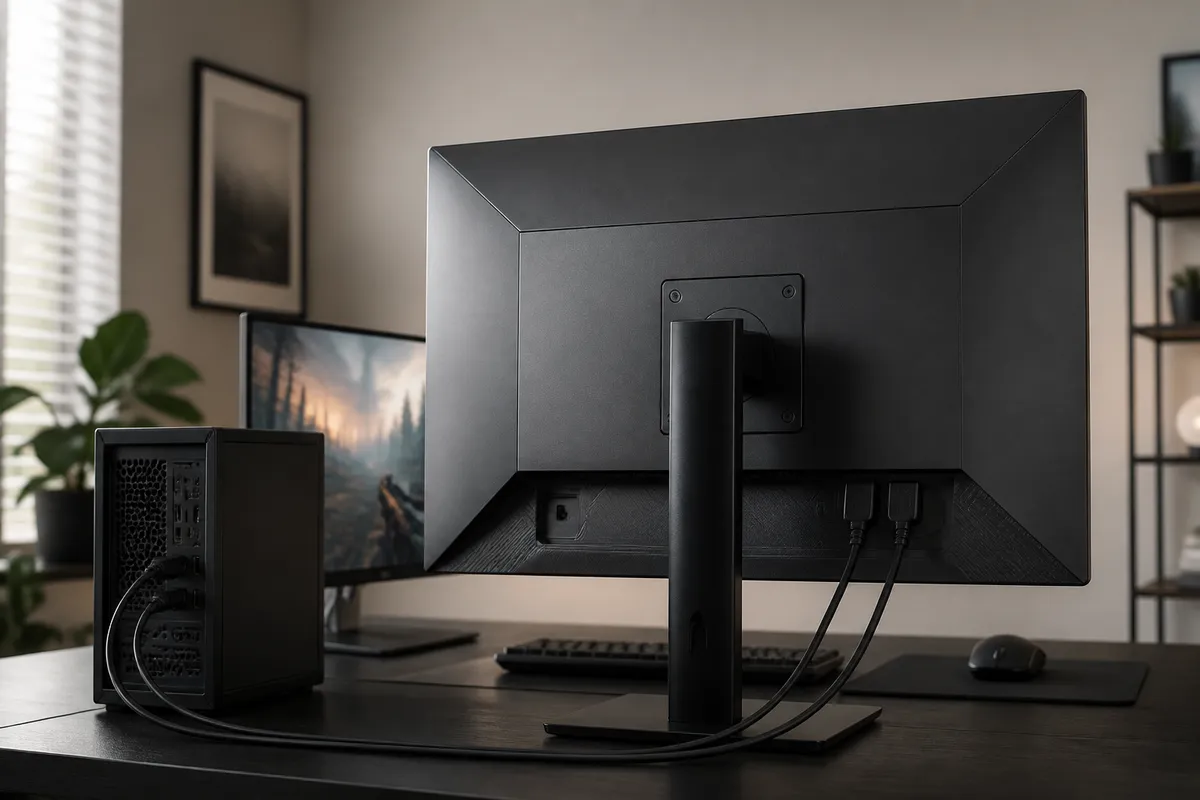
If a monitor’s highest refresh setting disappears after you change a cable, add a dock, or switch inputs, the connector name is only the beginning of the answer. Choose HDMI 2.1 or DisplayPort 1.4 by checking the whole path—from the source device to one monitor input—and confirming that the target resolution and refresh rate appear at both ends.
Start with the path on your desk
Three common setups point to three sensible starting places:
| Your setup | Start with | The detail that decides it |
|---|---|---|
| Console connected directly to a monitor | HDMI | The console’s published output modes and the mode table for that monitor input |
| Desktop graphics card with full-size DisplayPort on both devices | DisplayPort | The card and monitor both listing the resolution, refresh rate, and features you want |
| Laptop connected through USB-C, a dock, or an adapter | The host and dock documentation | The display mode carried by the laptop port and how the dock divides bandwidth among its outputs |
A direct cable is the cleanest diagnostic path. If the desired mode works directly but disappears through a dock, KVM switch, receiver, or adapter, the added device has become the first place to investigate.
What the version numbers actually tell you
HDMI 2.1 raises HDMI link capability to as much as 48 Gbps. HDMI Licensing Administrator lists 4K at 120 Hz among the standard’s higher-resolution, higher-refresh examples and defines gaming features including Variable Refresh Rate (VRR), Auto Low Latency Mode (ALLM), and Quick Frame Transport (QFT). It also requires manufacturers marketing a product as HDMI 2.1 to identify which HDMI 2.1 features that product supports. In other words, the version label is a family name, not a complete feature list.
DisplayPort 1.4 uses the 32.4 Gbps four-lane link rate introduced with DisplayPort 1.3. VESA describes DisplayPort 1.4 as adding support for Display Stream Compression (DSC) and gives 8K at 60 Hz with DSC as one example. DSC is designed as a low-latency, visually lossless display-interface codec, but the source and display must both support the mode being used.
Those numbers describe the standards. Your available settings come from the graphics card or console, the selected monitor input, the signal format, and everything placed between them. A monitor may reserve its top refresh mode for one input or require DSC for a demanding combination of resolution, refresh rate, color depth, and HDR.
Check the display mode, not how smooth it feels
Resolution and refresh rate travel with other signal choices. Bit depth, RGB or chroma format, HDR, and a second connected display can all change what the link must carry. That is why a connection that handles high-refresh 1440p may behave differently at high-refresh 4K.
Open the operating system’s display settings and record the selected resolution and refresh rate. Then open the monitor’s information page, if it offers one, and compare the signal the display says it is receiving. When the expected mode is missing, reduce the chain one piece at a time:
- Connect the source directly to the intended monitor input with a cable specified for the job.
- Select that input and check its input-specific menu settings.
- Choose the target resolution and refresh rate on the computer or console.
- Add HDR and VRR, then recheck the reported mode.
- Reintroduce the dock, adapter, KVM, receiver, or second display last.
This sequence tells you which change removed the mode. Changing several settings and devices together makes that answer much harder to see.
Console, desktop, and laptop choices
For a console, HDMI is normally the direct physical route. Match the console maker’s output table with the monitor manual’s HDMI table, including the input number. Two HDMI sockets on the same display can have different capabilities or menu requirements.
For a desktop, look at the graphics card before buying an adapter. When the card and monitor share DisplayPort, a direct DisplayPort cable is a simple first test. When both document the desired HDMI mode, HDMI can be just as straightforward. The better connection is the one that exposes the mode you plan to use without conversion.
For a laptop, the USB-C shape reveals very little by itself. Depending on the model, that port may carry DisplayPort Alt Mode, Thunderbolt, USB4, or data without display output. A dock may also divide its display transport across multiple monitors and other ports. Read the laptop’s port specification and the dock maker’s supported-display table for that host class before blaming the monitor cable.
Our dual-monitor dock compatibility guide covers that host-and-dock side of the chain. The Thunderbolt 5 versus Thunderbolt 4 dock guide explains why a newer port generation still cannot answer every display question on its own.
Treat VRR as an end-to-end feature
HDMI VRR and VESA’s Adaptive-Sync ecosystem both let display timing follow a variable frame output, but support still belongs to a device combination. The monitor specification, graphics hardware or console, driver controls, and chosen input determine the available range and behavior.
First confirm that the target resolution and refresh rate are present. Then enable the appropriate variable-refresh setting in the source controls and the monitor’s on-screen menu. Follow input-specific instructions when the manual gives separate guidance for HDMI and DisplayPort.
Cables, docks, and adapters can set the ceiling
For HDMI 2.1’s full 48 Gbps feature set, HDMI Licensing Administrator points to its Ultra High Speed HDMI Cable certification program. That label identifies the cable class; it cannot add a mode that the source or monitor input lacks.
For DisplayPort, choose a cable documented for the required mode and length. Conversion cables, passive or active adapters, docks, KVM switches, capture devices, and AV receivers each add their own limits. A DisplayPort-to-HDMI adapter may perform active signal conversion, so its supported modes and features matter as much as the plug shape.
When both direct connections expose the same settings, make the practical choice: use the input that leaves room for a second source, avoids a converter, and uses a cable you can identify later. There is no benefit in changing connector families when the limitation sits in the panel, source, dock, or selected display setting.
Frequently asked questions
Is HDMI 2.1 always better than DisplayPort 1.4 for high refresh?
No. Either can carry demanding display modes when the source, monitor input, cable, and selected signal settings support them. The monitor’s input table and the source device’s output specifications decide more than the connector name.
Can DisplayPort 1.4 run a high-refresh 4K monitor?
It can be part of a supported high-refresh 4K path. The available mode depends on color format, bit depth, HDR, and whether the source and display support transport features such as DSC.
Why does a dock lower my available refresh rate?
The dock has its own display transport and port-sharing rules. Test the monitor directly from the source, then compare the result with the dock maker’s supported-display table for your laptop and operating system.
Evidence boundary
This guide interprets standards and manufacturer documentation; it is not a measurement of a specific monitor, graphics card, console, dock, cable, or adapter. Confirm the final mode in the source settings and the monitor’s reported input signal.
Sources
- HDMI Licensing Administrator, HDMI 2.1 feature overview and what an HDMI 2.1 product label means.
- VESA, Why DisplayPort and Display Stream Compression.
- VESA, DisplayPort standard and DSC capability overview.