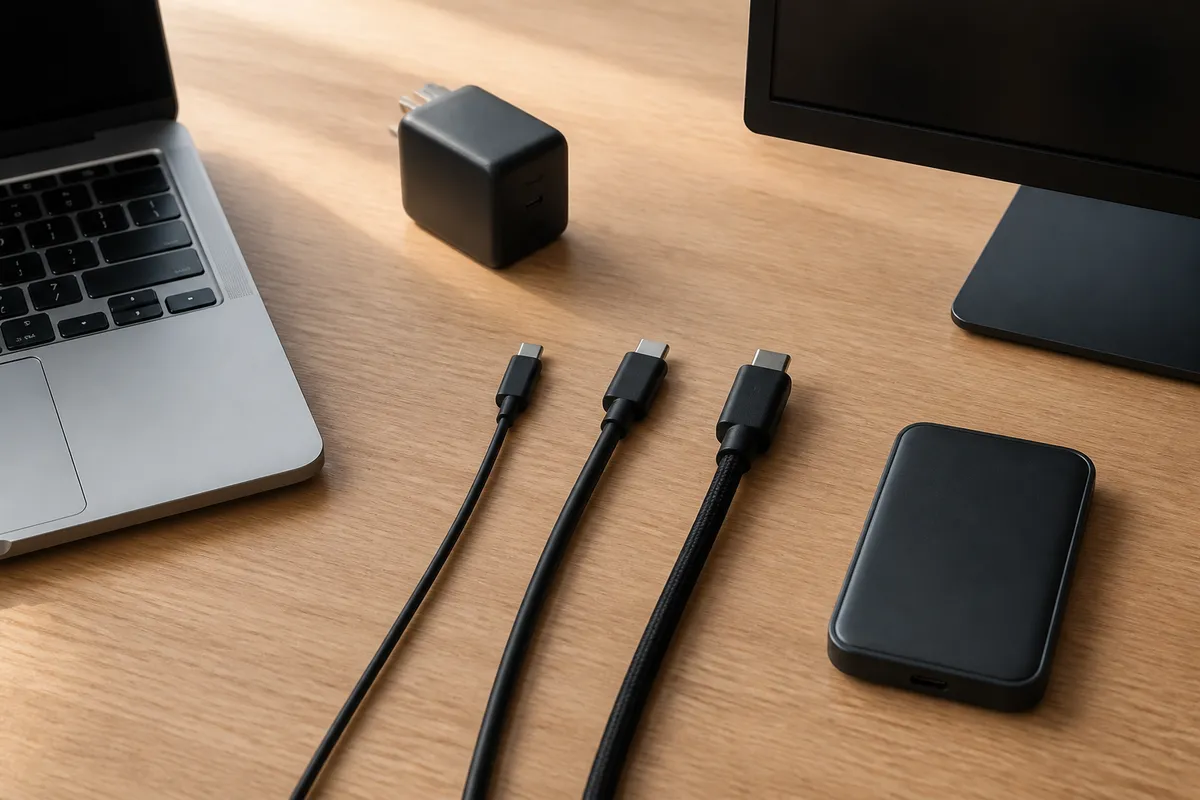
When three USB-C cables have the same small oval plug, it is easy to grab the nearest one for a charger, portable drive, or monitor and assume the job is covered. Their capabilities can differ sharply. USB-C describes the connector shape; the cable’s charging rating, data rate, and video capability are separate questions. Match the documented cable capability and the ports at both ends to the task.
Read each label for its job
A cable or its packaging may show a watt figure, a data-rate figure, a USB4 or Thunderbolt mark, or more than one of those. Each answers a different question.
| Marking or description | What it helps identify | What still depends on the connection |
|---|---|---|
| USB-C | The physical connector shape | Data speed, charging level, or display output |
| 60 W or 240 W | The cable’s stated power category | What a particular charger and device will negotiate |
| 5 Gbps, 10 Gbps, 20 Gbps, or 40 Gbps | The cable’s stated data capability | The speed supported by the ports, storage device, or dock |
| USB4 or Thunderbolt | A documented connection family and cable capability | Whether the source and display will produce the chosen video mode |
The important habit is to name the task before reading the label. A cable for overnight phone charging, a portable SSD, and a display may all fit the same USB-C socket while needing very different capabilities.
Charging labels describe one part of the power path
USB-IF’s cable-logo program uses 60 W and 240 W power markings for eligible USB-C to USB-C cables. USB Power Delivery 3.1 can define higher fixed-voltage power levels up to 240 W with a full-featured USB Type-C cable and connector. The connected charger and device still negotiate the power they use.
For charging, check three entries in the same place: the charger’s documented output, the device’s documented input, and the cable’s stated power capability. The lowest compatible part of that chain sets the practical result. A 240 W-marked cable can still charge a small device at a much lower level because the device accepts power within its documented limits.
Wattage also says little about data. A cable may be suitable for charging yet offer only USB 2.0 transfer speed. Keep the cable’s charging label with the charger decision, rather than using it as evidence about an external drive or display.
Data-rate labels matter for files, docks, and fast peripherals
For a USB-C to USB-C cable in USB-IF’s compliance program, power markings are required and, except for High-Speed USB 2.0 cables, the appropriate data-rate marking is also required. That makes a number such as 10 Gbps or 20 Gbps a stronger starting clue than the connector shape alone.
Start with the device that is moving the files. A portable SSD, dock, or computer may name a USB generation or a maximum transfer rate in its specifications. Then choose a cable whose documented data capability meets that requirement. When one end is limited to USB 2.0, the connection remains at USB 2.0 speed.
Apple’s cable documentation illustrates the distinction clearly: its USB-C Charge Cable can charge while being limited to 480 Mbps USB 2.0 transfer, while its Thunderbolt 3 cable lists higher data rates. That product-specific example is a reminder to read the manufacturer’s cable description instead of inferring speed from the plug.
Video requires a complete display path
Video adds another link to check. The source port must support the selected display connection, the cable must carry the needed connection, and the display or adapter must accept it. A cable label describes only the cable; the laptop’s port specification establishes whether it has DisplayPort Alt Mode, Thunderbolt, USB4 display support, or a stated output mode.
This is why a charge-oriented USB-C cable can fit perfectly yet lack a video path. Apple documents one USB-C Charge Cable as USB 2.0-only with no video support, while its Thunderbolt cable supports a stated video path. For another computer or monitor, use that maker’s port table and the display or dock documentation; Apple’s result belongs to the products it names.
If a monitor connection fails, simplify the path before changing settings at random:
- Connect the source directly to the intended display input where the documentation allows it.
- Confirm the source port’s published display capability.
- Check the cable model’s manufacturer description for display or high-bandwidth support.
- Add a dock, adapter, KVM, or hub only after the direct path is understood.
Our dual-monitor dock compatibility guide covers the separate host-and-dock checks when one USB-C connection needs to serve more than one display.
When the cable lacks a clear marking
An unmarked cable leaves its performance unknown. Look for the product name on the retailer invoice, cable packaging, manufacturer page, or the documentation that came with the device. If it remains unidentified, set it aside for tasks that require a known data rate or display capability; the plug shape cannot supply that information.
For a cable advertised with a USB-IF logo, the USB-IF product search is a way to check products certified to bear that logo. The result applies to the named product and cable configuration, so a similar-looking cable on the desk still needs its own identification.
A five-minute cable sort for a crowded desk
Gather the cables you use most and make three groups: charging-only or unknown, known data cables, and known display-capable cables. Photograph the packaging or note the model number before the labels disappear into a drawer. Then keep the cables where the task happens: the portable-drive cable with the drive, and the display cable with the monitor or dock.
This small sort lasts longer than trying to remember a cable by thickness or color. A thick cable can be capable, yet appearance cannot identify its specification. The next time a cable is replaced, match the written capability to the job.
Frequently asked questions
Does USB-C mean a cable supports video?
USB-C identifies the connector shape. Video depends on the source port, cable, and display or adapter supporting a compatible display path. Check the documentation for all three.
Does a 240 W USB-C cable transfer data faster than a 60 W cable?
The watt marking concerns the cable’s stated power category. Check a separate data-rate marking or the cable specification for file-transfer capability.
Why does a USB-C cable charge my phone but not work with my monitor?
Charging and video are separate capabilities. The cable may lack the required display connection, or the computer’s port, adapter, or monitor input may lack the intended path. Start with the documentation for the source port and the cable.
Evidence boundary
This documentation-led guide identifies stated cable capabilities. It cannot predict device-specific charging time, electrical safety, file-transfer performance, or a display mode for a particular cable, charger, computer, dock, or display. Use the current documentation for the models at both ends of the connection.
Sources
- USB-IF, USB-C to USB-C cable compliance and logo requirements and USB Type-C cable power-rating logo guide.
- USB-IF, USB Power Delivery overview and product search.
- Apple Support, About the Apple Thunderbolt 3 (USB-C) Cable.
- Microsoft Support, Fix USB-C problems in Windows.