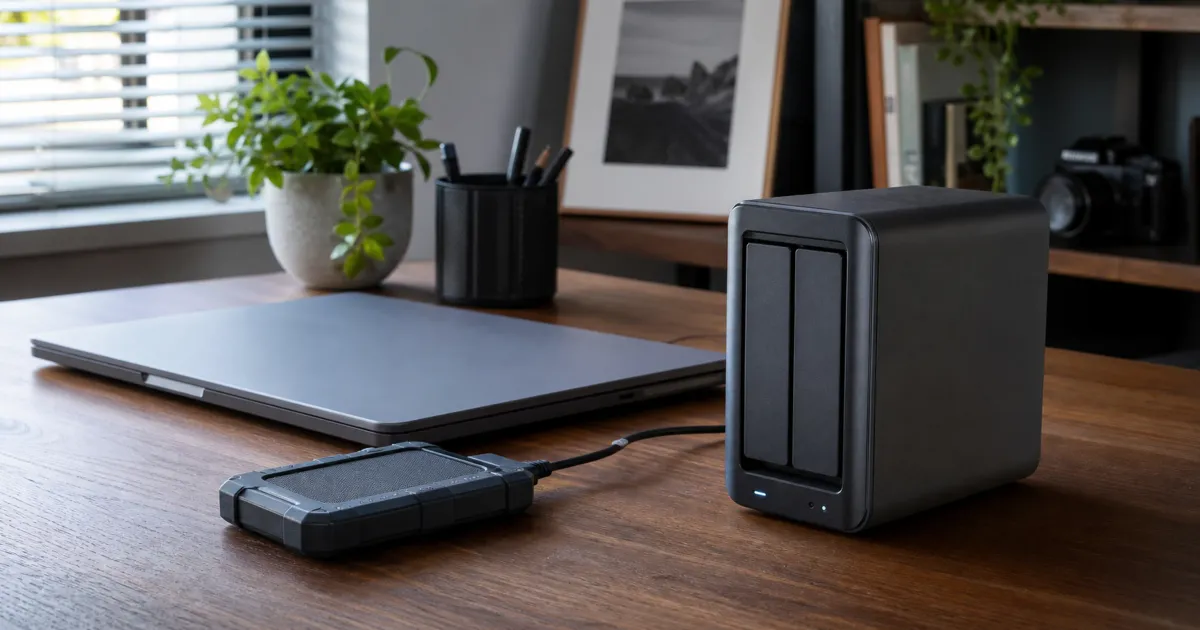
For a one-computer home, an external SSD is usually the simpler home-backup destination; a NAS earns its complexity when several devices need scheduled network backups and one household member will maintain it. Neither choice replaces a separate recovery copy. This guide separates storage convenience from recovery planning.
Choose the recovery workflow before the hardware
An external SSD is a destination attached to one computer. That makes it easy to understand: connect it, let the operating system finish a backup, safely eject it, and keep a second copy away from the computer. Apple documents directly connected external storage as the common Time Machine setup and recommends a backup disk with at least twice the Mac’s capacity. Windows users should make the equivalent check in their chosen backup tool rather than assuming a drive is configured merely because it appears in File Explorer.
A NAS is a small network storage computer. It can be useful when two or more computers need a common destination, when the backup disk cannot stay attached to one laptop, or when the household wants to manage shared storage. The new work is real: create accounts, choose drive types, keep the NAS updated, inspect failed jobs, and decide where an additional copy lives. A NAS that is never checked is more complicated than an SSD that is never connected; either can leave you without a usable restore point.
Use a NAS only after writing down who will receive failure notifications and who will test a restore. That owner is part of the purchase, not an optional extra.
RAID improves availability; it is not a backup
Two drives in a mirrored NAS can keep local files available after one drive fails. It does not create a separate version if a file is deleted, encrypted by malware, corrupted before backup, or lost with the enclosure. It also does not prove that a restore works. NIST’s recovery guidance treats backup and restoration capability as a strategy, not as one redundant disk set.
A practical home plan has at least two copies in different failure domains. For example, a laptop can back up to an external SSD while a second encrypted copy is kept at another location; or several laptops can back up to a NAS while the NAS sends a separate backup to storage outside the house. The second copy needs its own credentials, retention settings, and recovery instructions.
When a directly attached SSD is the better first move
Choose the SSD route when one computer contains the irreplaceable work, photos, or documents and the owner can plug it in routinely. It is also the clearer option for a laptop that travels: the disk can be connected for a backup before a trip, then stored separately after the task completes.
The weak point is availability. A drive in a drawer cannot receive automatic backups, and a drive left permanently beside the laptop shares the theft, spill, fire, and power-event risks of that desk. Use the backup application’s status screen, not the drive activity light, to confirm the most recent successful run and restore one ordinary file before trusting the routine.
When a two-bay NAS is worth the setup work
The DS224+ is a useful example of what a small NAS changes. Synology’s data sheet lists two SATA bays and explicitly says drives are not included. That means the enclosure, the selected drives, the network path, and the backup configuration are all separate compatibility decisions. It is a better fit for a household with multiple computers than a single disk passed between desks.
For Macs, Apple’s current guidance says a third-party NAS must support Time Machine over SMB; it advises against AFP for future compatibility. Confirm the NAS model’s current support documentation rather than relying on an older setup video. For any computer, make a small test backup, disconnect the source, and restore a non-sensitive folder to a different location. The goal is to test the actual path, not merely the configuration screen.
A five-year comparison is mostly an ownership comparison
Do not use a single checkout price as the full comparison. The external route includes enough capacity, a replacement plan, and a second location. The NAS route includes the enclosure, two drives, power use, a network connection, replacement drives, administration time, and a second backup destination. A more expensive setup can be sensible when it covers more devices, but only if its routine is maintained.
Start with these questions:
- Which devices must be restored, and who owns each one?
- Can each backup run while the device is away from its usual desk?
- Where is the copy that does not share the computer’s location?
- Who reads a failed-backup alert and replaces a failed drive?
- When was the last file and full-device restore tested?
Design the backup rotation, not just the first copy
An SSD is often easiest to improve with a simple rotation. Use one drive as the current directly attached backup destination, then periodically copy the important backup set to a second encrypted drive kept at a different address. The interval should match the consequence of loss: a family photo library may need a different routine from a work laptop that changes every day. Label the drives by role and date, and keep recovery passwords or keys in a place that remains available if the laptop is lost.
The important detail is independence. A second disk that is always plugged into the same dock is convenient, but it is not a separate response to theft, water damage, or a power event. Likewise, two drives in the same NAS can help availability without providing a copy outside the enclosure. Separate locations, credentials, and retention rules reduce the chance that one mistake changes every copy at once.
For a NAS, define whether it receives device backups, shared-file copies, or both. Those are different jobs. A shared folder can be handy for household files, while a device backup needs a recoverable history and clear user ownership. Avoid granting every household account administrative access just because everyone needs storage. Least-privilege accounts and a documented administrator make it easier to understand who can delete, encrypt, or change the backup destination.
Test recovery at three useful levels
First, restore one ordinary file to a new folder and open it. This catches the common mistake of confusing a successful-looking backup job with an accessible backup. Second, restore a folder that includes a mix of photographs, documents, and subfolders, then compare the dates and names with the source. Third, read the operating system or backup application’s full-device recovery instructions before an emergency. You do not need to erase a working computer to learn where its recovery media, encryption key, or account credentials live.
Record the result in plain language: the backup name, last completed date, destination, secondary-copy location, and the person who can perform a restore. Revisit that note after replacing a laptop, changing a router, turning on disk encryption, or moving the NAS. These changes can silently alter a destination path or require new credentials.
Backups also need a retention decision. If a file is corrupted on Monday and the backup runs every day, a single current copy may repeat that corruption. Keep versions long enough to notice ordinary mistakes, and make sure free space will not remove the only older version without warning. The right number of versions depends on how quickly you discover errors; the point is to choose it deliberately rather than relying on an unknown default.
When a computer is replaced, keep the old backup readable until the new machine has completed its own backup and an ordinary restore. Do not erase the prior disk just because the migration appears complete. That overlap gives you a practical recovery path if a folder, account setting, or encryption key was missed during the move.
Set a calendar reminder for the restore check, rather than relying on memory. A quarterly file restore and an annual review of the full-recovery instructions can expose missing cables, expired credentials, and capacity pressure while the original computer is still available.
Related reading
If your laptop needs more ports before a directly attached SSD is convenient, read our USB-C dock guide. For the computer itself, start with the refurbished business laptop buying guide.
Frequently Asked Questions
Can I use a NAS as the only backup?
No. A NAS can be the primary destination, but it shares a location and an administration boundary with the household. Keep a second copy outside that NAS and test that it can restore the files you care about.
Does a mirrored NAS protect against accidental deletion?
No. Mirroring commonly duplicates the current state across drives. Use versioned backup retention and a separate copy to address deletion, corruption, or a compromised account.
Sources
- Apple: https://support.apple.com/en-us/104984 and https://support.apple.com/en-us/102423
- Synology DS224+ data sheet: https://global.download.synology.com/download/Document/Hardware/DataSheet/DiskStation/24-year/DS224%2B/enu/DS224%2B_Data_Sheet_enu.pdf
- NIST SP 800-34 Rev. 1: https://csrc.nist.gov/pubs/sp/800/34/r1/upd1/final